https://phppot.com/php/php-restful-web-service/
Saturday, April 27, 2019

Wednesday, April 24, 2019
Tuesday, April 23, 2019
Monday, April 22, 2019
Common disable auto update and change rdp
Disable auto update
services.msc
windows update -> startup -> disabled
dd to Dave's reply, Windows + R, type gpedit.msc to open Local Group Policy Editor, the location is Computer configuration, policies, Administrative templates, Windows Components, Windows Update, in the right pane choose "Configure automatic updates" to disabled.
Change RDP port
Click simultaneously on the Windows logo + R to open the “Run” dialog.
- Open the registry editor by typing the “regedit” command.
- Search for this registry subkey: HKEY_LOCAL_MACHINE\System\CurrentControlSet\Control\TerminalServer\WinStations\RDP-Tcp\PortNumber.
Upgrading from Windows Server 2016 Standard "Evaluation" to a fully registered version
Dism /online /Set-Edition:ServerStandard /AcceptEula /ProductKey:12345-67890-12345-67890-12345authentication error
https://www.itechtics.com/solved-authentication-error-function-requested-is-not-supported/
- Go to Run –> gpedit.msc to open Group Policy Editor.
- Go to the following policy path:
Computer Configuration -> Administrative Templates -> System -> Credentials Delegation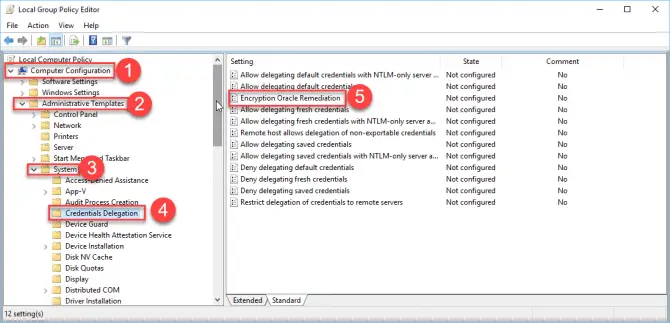 Credentials Delegation group policy
 - From the right-hand pane, open Encryption Oracle Remediation.
- Select Enabled and set the protection level to Vulnerable.
Adding new IP block to SoYouStart Proxmox server
https://www.tienle.com/2014/11-05/adding-new-ip-block-to-soyoustart-proxmox-server.html
For SoYouStart server
- First, we need to add a new MAC address for each IP address that we want to use: Go you SYS manager >> IP >> Select the failover IP and “add a Virtual MAC” for it.
- Then, when creating a new VM in proxmox, when configuration NIC (Network Interface Card), remember to modify it with the vMac of your Failover IP. This is a very important step that I forgot in the very first use.
- If you already created a new network bridge when following the guide Setting up Windows VM on Proxmox with 1 IP, be sure you choose vmbr0 bridge instead of the new forwarding bridge.
- Install your guest machine.
- After finishing installation, you can configure your VM follow the guide to setup Network Bridging @ OVH. In general, in your VM:
- IP address is your new failover IP address
- Netmask is 255.255.255.255
- Network gateway is your server IP with the last octet replaced by 254 (e.g. your server IP is 123.456.789.012, then the VM gateway will be 123.456.789.254)
- The gateway you need to use in your virtual machine should not be: (i) the IP of your dedicated server or (ii) IP failover but you must use the gateway provides for your dedicated server.
- Otherwise, you will receive warning from OVH “Bad configuration regarding your server XXXX” and this might cause blocking your IP.
- DNS is the OVH DNS: 213.186.33.99
Done. Enjoy your new IP block with very good price
Setting up Windows VM on Proxmox with 1 IP
https://www.tienle.com/2014/06-03/setting-up-windows-vm-on-proxmox-with-1-ip.html
We will edit /etc/network/interfaces and add vmbr2 as follows:
1
2
3
4
5
6
7
8
9
10
11
12
| auto vmbr2 iface vmbr2 inet static address 192.168.0.254 netmask 255.255.255.0 bridge_ports none bridge_stp off bridge_fd 0 post-up echo 1 > /proc/sys/net/ipv4/ip_forward post-up iptables -t nat -A POSTROUTING -s '192.168.0.0/24' -o vmbr0 -j MASQUERADE post-down iptables -t nat -D POSTROUTING -s '192.168.0.0/24' -o vmbr0 -j MASQUERADE post-up iptables -t nat -A PREROUTING -i vmbr0 -p tcp --dport 13389 -j DNAT --to 192.168.0.1:3389 post-down iptables -t nat -D PREROUTING -i vmbr0 -p tcp --dport 13389 -j DNAT --to 192.168.0.1:3389 |
Install Windows On A Kimsufi, SoYouStart Or Other Server Completely Free
https://joodle.nl/install-windows-on-a-kimsufi-completely-free/
- wget -O- 'https://mirror.joodle.nl/WS2016Evaluation-Kimsufi.gz' | gunzip | dd of=/dev/sda
- Username: Administrator
- Password: Password147
Windows Server 2012 R2:
- wget -O- 'https://mirror.joodle.nl/WS2012R2-Joodle-Template.gz' | gunzip | dd of=/dev/sda
Windows 7, Windows 8.1 & Windows 10
- Username: Admin
- Password: Password147
ProXmoX VE related
https://post.smzdm.com/p/779027/
基于ProXmoX VE的虚拟化家庭服务器(篇二)—虚拟化软路由
基于ProXmoX VE的虚拟化家庭服务器(篇一)—ProXmoX VE 安装及基础配置
Subscribe to:
Comments (Atom)